🐊 GUIDE: SKIN SYSTEM
MillennialW0LF ·
🦖SKIN GUIDE
🔄 CHANGING YOUR SKIN
Open the dinosaur you want to customize.
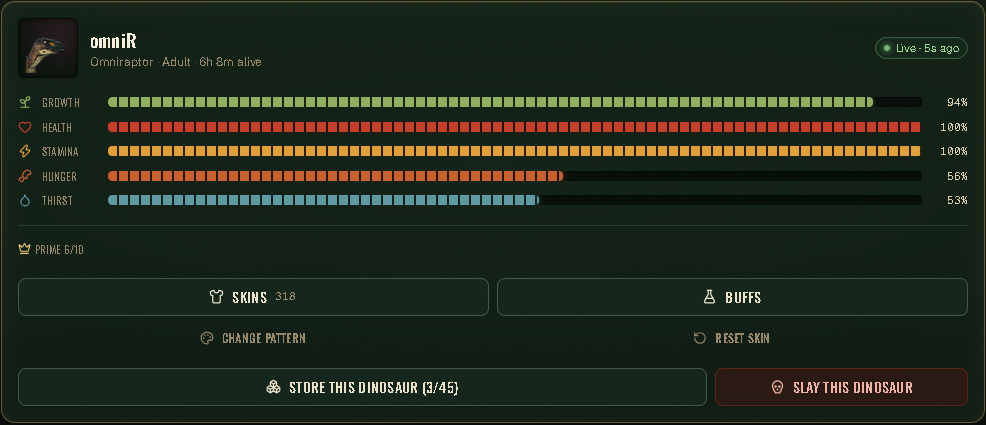
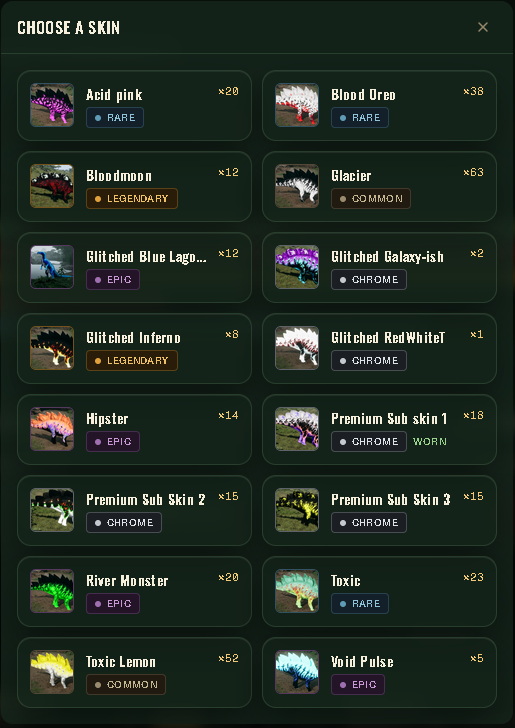
Click SKINS to open your available skins for that dinosaur.

EACH SKIN DISPLAYS:
-
Skin Name — The name of the skin.
-
Quantity (×#) — How many copies of that skin you currently own.
-
Rarity — How rare the skin is.
FOR EXAMPLE:
Acid Pink ×20 — RARE
This means you currently own 20 copies of the Acid Pink skin.
🔄 RESET SKIN GUIDE
The RESET SKIN button allows you to remove your currently selected custom skin and return your dinosaur to its default skin.
HOW TO RESET YOUR SKIN
- Open your Dinosaur Profile.
- Find the RESET SKIN button at the bottom of the screen.
- Click RESET SKIN.
- Your dinosaur's custom skin will be removed and the default skin will be restored.

🎨 CHANGE PATTERN DESIGN
- Open your Dinosaur Profile.
- Click CHANGE PATTERN.
- The available patterns for that skin will appear.
- Select the pattern you want.
- Your dinosaur will now use the selected pattern.
🔄 CHANGING AGAIN
You can return to CHANGE PATTERN whenever you want to select another available pattern.
Your available patterns depend on the skin you have selected.
⚠️ Important
- Not every skin has multiple patterns.
- Changing your pattern does not change your dinosaur's stats.
- Patterns are cosmetic and only change your dinosaur's appearance.