🎙️ GROK GUIDE: HOW TO USE PROXIMITY CHAT IN THE ISLE: EVRIMA
MillennialW0LF ·
🦖 Hear the dinosaurs around you — and let them hear you!
Ever wanted to actually talk to the dinosaurs around you without having everyone on the server hear you?
That's exactly what Proximity Voice Chat does!
Instead of one giant Discord call where everyone can hear everyone, proximity chat means your voice is tied to your dinosaur's location. Players close to you can hear you, while players farther away won't
The Easiest Way to Join Proximity Voice Chat simply going on the website and Hitting the connect button you will find in the middle of the website screen
IMPORTANT: You Should be online in the Game and on Server for the Connect Button to Appear
The Second Way to Join PRoximity Voice Chat
STEP 1
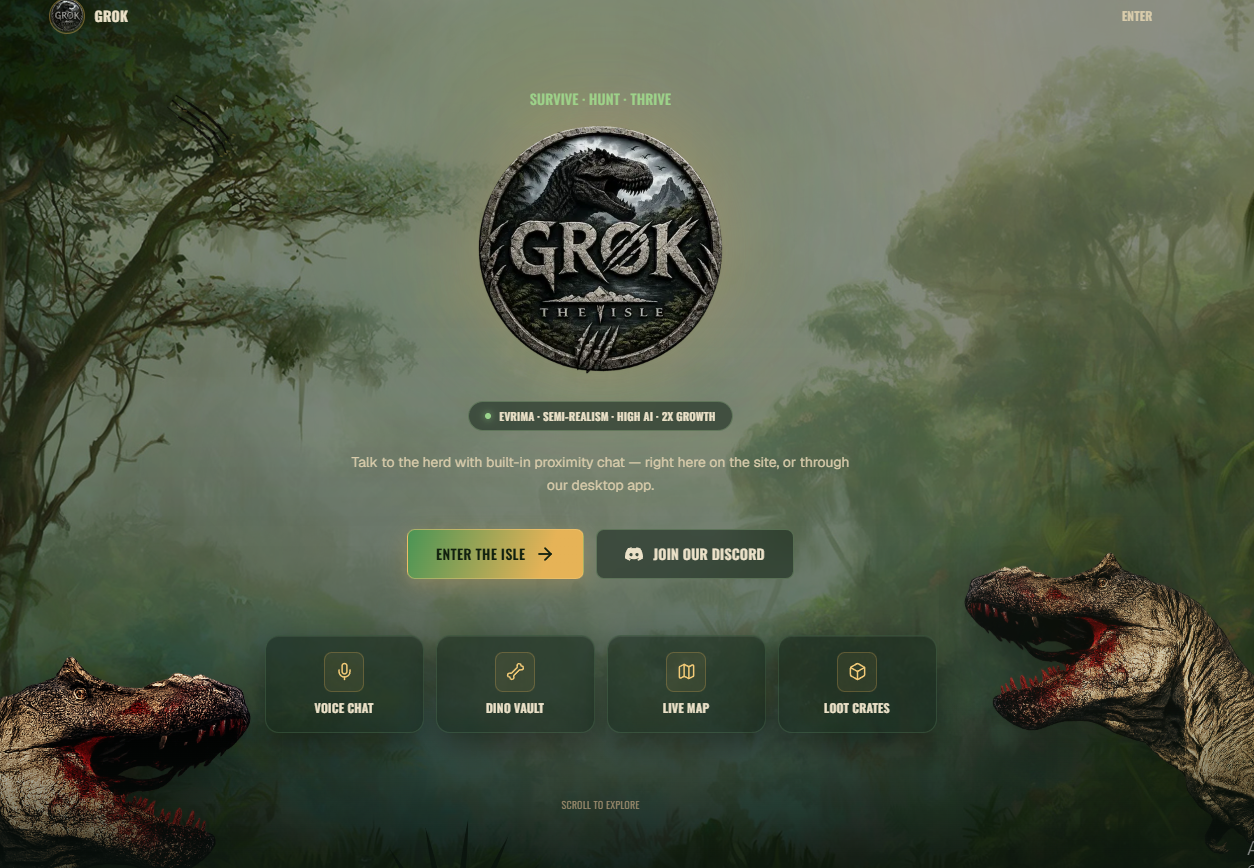
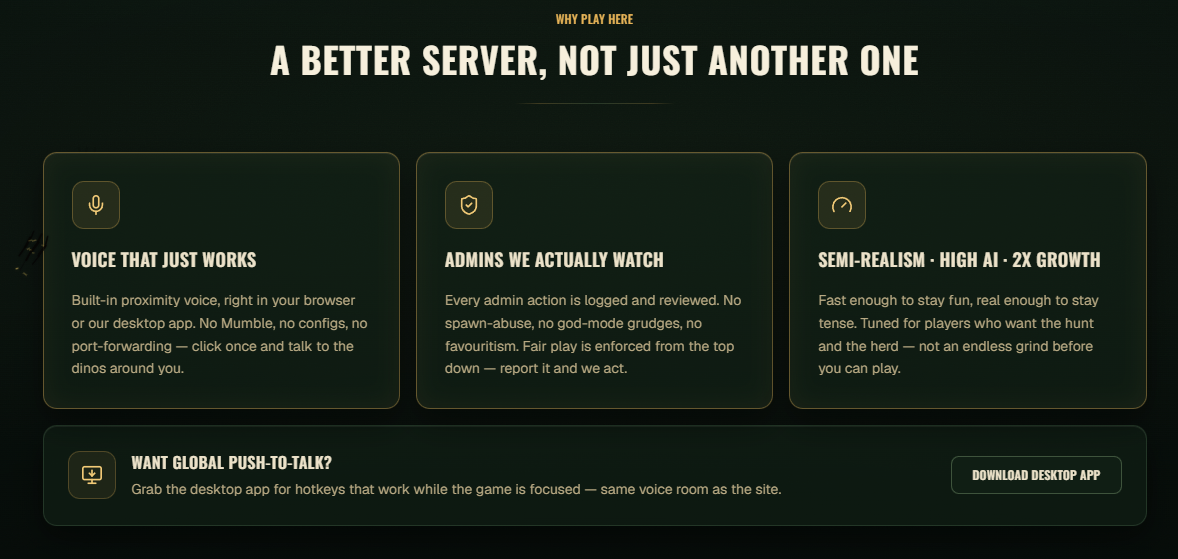
On the Main Screen of GROK you scroll down a little bit until you see the Column that says Want Global Push-to-talk?. Next to that you will find the link to Download Desktop App
🛠️ STEP 2 — INSTALL THE PROGRAM
Once the download is complete:
- Open your Downloads folder.
- Find the GROK proximity-chat .exe.
- Double-click it.
- Follow the installation instructions.
- Allow it to finish installing.
- Start desktop App
🎧 STEP 3 — CHECK YOUR MICROPHONE
Before jumping into The Isle, make sure your microphone actually works.
You want to check:
- 🎤 Input: Your microphone/headset
- 🔊 Output: Your headphones/headset
A headset is strongly recommended.
Why?
Because if you're using speakers, other players may hear their own voices coming back through your microphone.
IMPORTANT:YOU Should be Online and on the server for the Companion app to work Fully
STEP 4- Opening The Companion App\Desktop App HUB
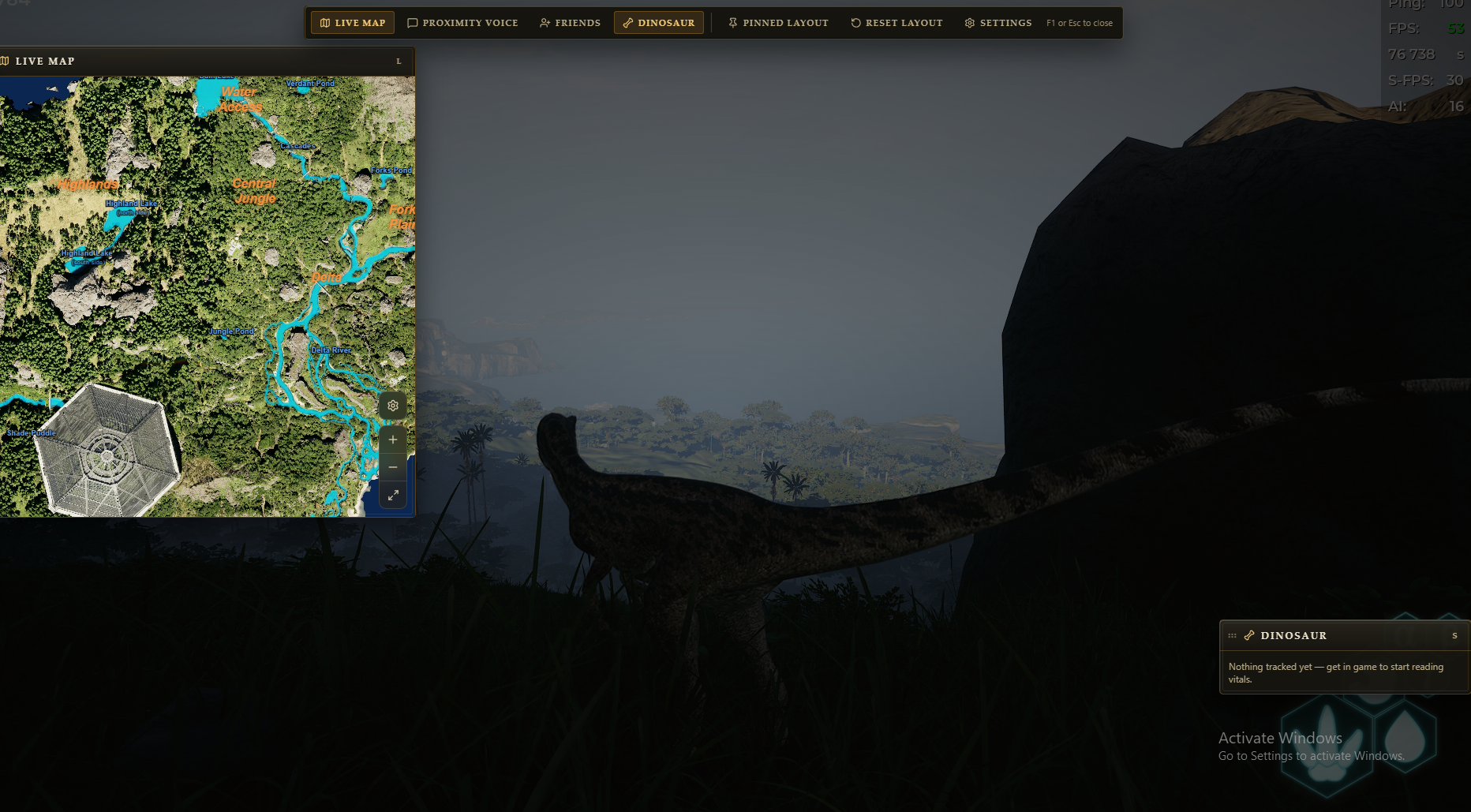
While in Game press F1 to open the Companion App\Desktop App (Another way to open HUB is by opening show Hiiden Icons on your Task BAr and clicking on the Companion App and then selecting HUB)
This is How your Game will Look when opening up the Companion Hub
Step 5 -Connecting To Proximity Voice Chat(VOIP)
Next to Live Map You will see the proximity app bar.Click on the Proximity App
A Bar will open with all the setting available for Proximity App At the top of the bar you will find the Connect button.
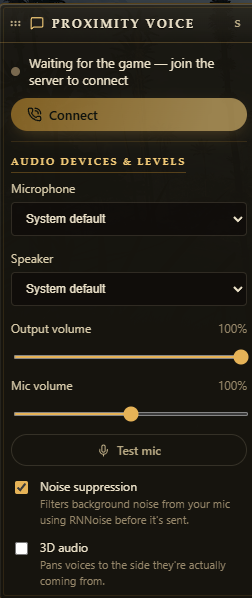
Step 6 - Change the Settings to your preferred Settings
Everyone has different setting that suits their Game Play Best Choose the Settings you want and how loud or soft you want your Output Volume and Mic Volume
Step 7 - Push to Talk Settings
Press F1 to Open Up the Hub Go to Settings
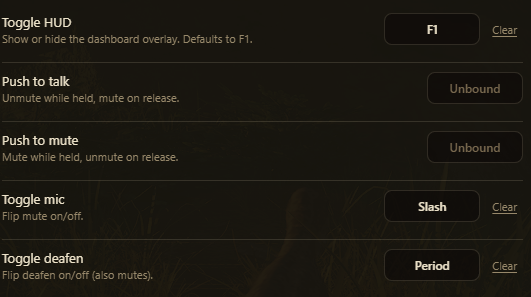
There you will find all your seeting for adding Binding keys to your hub Customize it the way you want it to be
🤫 YOU DON'T HAVE TO TALK
Don't want to use your microphone?
That's completely fine.
You can still play normally. We have a Mute Mic Button and a Deafen Button available
🎮 GROK PROXIMITY CHAT QUICK CHECKLIST
Before playing:
- ☑️ Proximity chat installed
- ☑️ Voice program running
- ☑️ Microphone working
- ☑️ Headset selected
- ☑️ Push-to-talk configured
- ☑️ The Isle: Evrima running
- ☑️ Joined GROK
- ☑️ Test voice with another player
- ☑️ Go survive! 🦖