🎥 F2 RECORDING IN THE ISLE
ElizabethFRSA ·
📹 What Is F2 Recording?
On the GROK server, F2 recording is an important part of keeping gameplay fair and helping admins investigate incidents.
When an incident happens, your recording can provide the evidence admins need to understand what actually happened, rather than relying only on screenshots or different player accounts of the situation.
If you are involved in an incident or are asked by an admin to provide footage, make sure your recording clearly shows the relevant gameplay.
🎮 How to Record Using F2
In The Isle, the F2 key can be used to access the game's recording/replay functionality, depending on your current game setup and server configuration.
Before you start playing, make sure your recording feature is working correctly.
✅ Before playing:
-
Open The Isle.
-
Make sure your recording/replay function is enabled.
-
Test it before entering a situation where you may need evidence.
-
Make sure you have enough storage space for your recordings.
-
Keep the relevant footage until you know whether an admin may need it.
⚠️ Important: Don't delete footage from an incident until the situation has been resolved.
🦖 What Should Your Recording Show?
When submitting evidence, admins need enough information to understand the situation.
Try to make sure your footage includes:
- Your gameplay and perspective.
- The players/dinosaurs involved.
- The events leading up to the incident.
- The actual incident.
- What happened immediately afterwards.
- Any important chat or game information visible on screen.
Context matters! A short clip showing only the final few seconds may not give admins enough information to make a fair decision.
📤 How to Send Your Recording Through Discord
Step 1
Open The Isle Game
Step 2
In the Menu screen,you will see a replay button
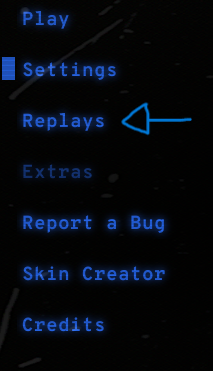
Press the replay button
Step 3
You will find all your recorded gameplay video in this area

Step 4
Go threw your videos to find the correct recording of when the rule break happend
Step 5
Use any Recording device on pc to record replay (Medal,Steam,Nvidia)
Step 6
Locate the video file on your computer.
If the recording is too large for Discord, do not simply cut out important context just to make the file smaller.
Instead, use an approved video/file-sharing service and send the link (Youtube)
Step 7
- Open a IN-Game Rule Break Ticket
- Click the + button beside the message box.
- Select Upload File.
- Choose your recording.
- Add a short explanation of what the footage shows.
- Send the message.
🔗 If the Video Is Too Large for Discord
Large recordings can quickly become too big to upload directly.
If Discord won't accept the file:
- Upload the original recording to an approved file/video-sharing service.
- Copy the share link.
- Make sure the link permissions allow the admin team to view/download the footage.
- Post the link in your report/ticket.
- Keep the original recording until the report has been completely resolved.
🚨 Do not send an edited or cropped clip if the full recording is available. Admins may need the surrounding footage to understand exactly what happened.
WHAT IF F2 DOES NOT WORK
If F2 does not work either because the game itself is undergoing bugs/glitches or when it's been worked on.Please use other recording devices (Medal,Nividia or Steam) to record your gameplay.
🦖 Remember
Recording your gameplay isn't just about protecting yourself — it helps the GROK admin team investigate incidents fairly and accurately.
🎥 Record it.
📁 Keep it.
📤 Submit it correctly.
🛡️ Let the admins investigate.
Good evidence = better investigations = a fairer GROK community. 🦖💚